> ## Documentation Index
> Fetch the complete documentation index at: https://docs.radar.com/llms.txt
> Use this file to discover all available pages before exploring further.
# Olo
The Olo integration is available on the [**Enterprise plan**](https://radar.com/pricing).
Radar can track customer pickups for orders placed through [Olo](https://www.olo.com). The integration includes optional capabilities to [fire orders](/integrations/olo#order-firing) based on live location updates and send approaching and arrival alerts to [Olo Expo](/integrations/olo#expo-notifications).
## Configuration
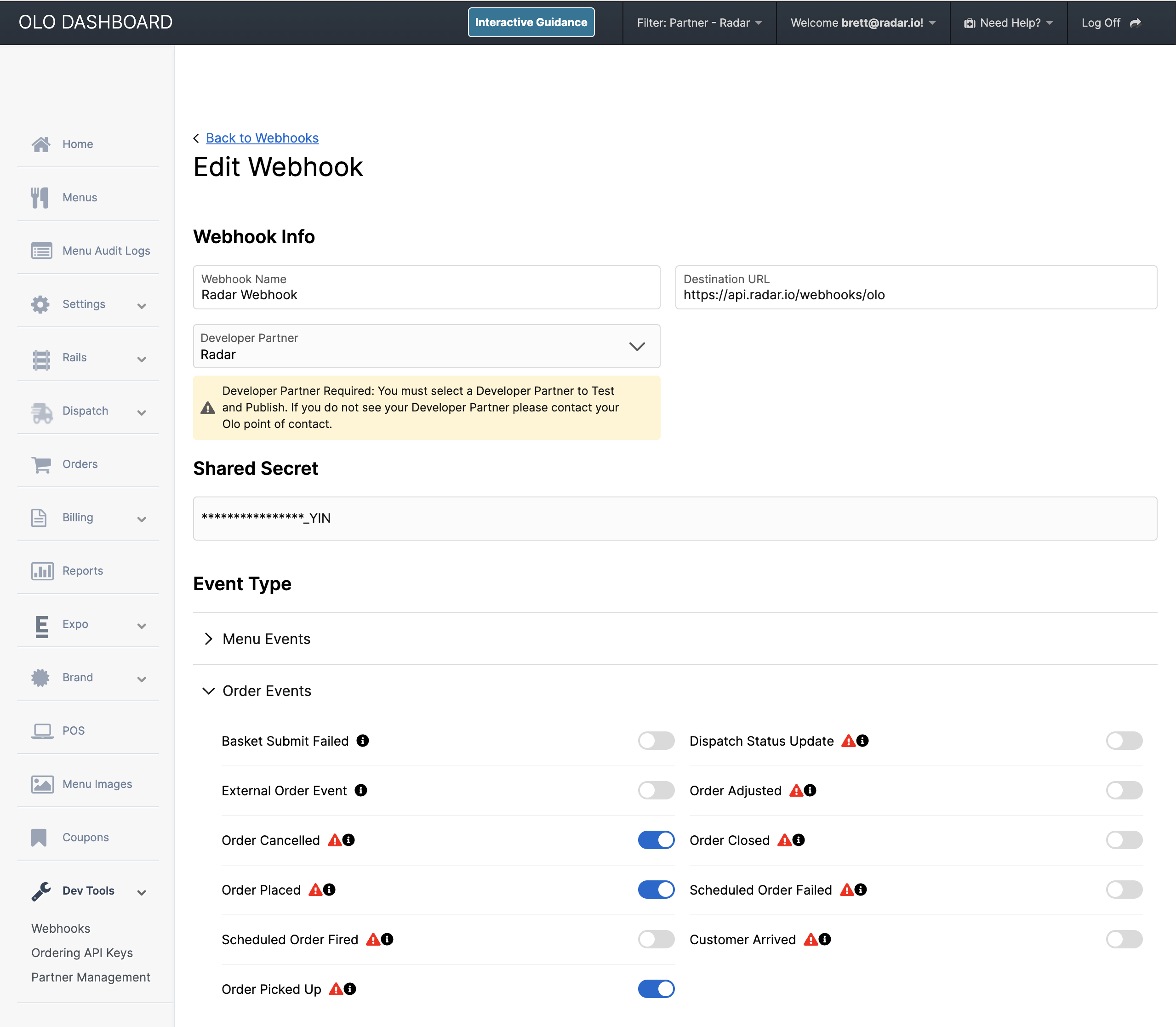
Configure an Olo webhook to deliver order events to `https://api.radar.io/webhooks/olo` via the *Development Tools* section of the Olo Dashboard (requires two-factor authentication and at least Brand Manager permission). Under the *Order Events* section, enable *Order Placed* and *Order Cancelled*. If leveraging [Olo Expo](/integrations/olo#expo-notifications), enable the *Order Picked Up* event as well.
Once the webhook is setup, your Radar account team will setup the configuration on the [Integrations page](https://dashboard.radar.com/integrations). Applicable Olo *Handoff modes*, a destination geofence tag (e.g., `restaurant`), and custom field mappings from the Olo webhook body to Radar trip metadata will be set.
Finally, on the Radar [Geofences page](https://dashboard.radar.com/geofencing/geofences), [import geofences](/geofencing/geofences#csv-import) for your restaurants. Use the tag from the Olo integration configuration for the geofence `tag` attribute.
 Radar will automatically create trips when new orders are placed, as well as complete or cancel trips when orders are completed or cancelled in Olo. Call `Radar.startTrip(tripOptions, trackingOptions)` with `tripOptions.externalId` set to the Olo order ID to start the Radar trip and enable tracking.
The mapping below will be used between the Olo webhook and a Radar trip:
| Olo webhook field | Radar trip attribute |
| -------------------------- | ---------------------------- |
| `orderId` | Trip external id |
| `storeNumber` | Trip destination |
| `timeReady` - `timePlaced` | Trip approaching threshold\* |
| `timeReady` | Trip scheduled arrival at\* |
\**Requires enabling the associated auto-calculate order firing setting*
Assuming locations permissions have been granted and location tracking has been started in your app, Radar will calculate live ETAs to the restaurant and generate `user.updated_trip`, `user.approaching_trip_destination`, and `user.arrived_at_trip_destination` events. Learn more about [Trip Tracking](/geofencing/trips).
## Order firing
Radar can fire orders in Olo based on customer location rather than a preset time to ensure food preparation time aligns with customer arrival.
Orders in Olo will need to set a `timewanted` for advance orders, or alternatively, set the `externalRef` to any value that starts with `radar_` (i.e. `radar_h87y12rgb`).
Additionally, configure Radar with a *Partnership Type* of *Customer Arrival* via the *Partner Management* section of the Olo Dashboard. Select stores in the configuration where order firing will be enabled. Upon completion, reach out to your Radar account team to complete the order firing integration.
When starting a trip for an order, include the `oloOrderGuid` and `oloHandoffMode` in trip metadata.
The trip's approaching threshold and scheduled arrival at attributes are used to determine the order firing time. When an active trip ETA drops below the approaching threshold, Radar generates a `user.approaching_trip_destination` event and Radar will fire the order. If the trip is started inside the destination geofence, Radar will fire the order immediately. In the event the `scheduledArrivalAt` set on the trip is reached before the approaching threshold is crossed, the order will automatically fire. See below for how to configure these two parameters.
### Scheduled arrival at
A `scheduledArrivalAt` datetime is required as a fallback in the event location sharing is disabled or the device is experiencing connectivity issues.
You can enable auto-calculation of the `scheduledArrivalAt`, which is initially set to the `timeReady` value from the Olo Order Placed webhook and then continues to update based on each trip ETA calculation. This includes a backup fire delay setting which is a maximum number of minutes to push back the initial scheduled arrival at. This can be configured in [Trips Settings](https://dashboard.radar.com/settings#trips-settings).
As an alternative to Radar's automatic calculation, manually set the `scheduledArrivalAt` either via `Radar.startTrip()` in the app, `Radar.updateTrip()` in the app or the [Trips API](/api#trips) server-side. Setting this manually will override use of Radar's auto-calculated `scheduledArrivalAt` setting.
### Approaching threshold
In the Radar [Trips Settings](https://dashboard.radar.com/settings#trips-settings), set the *Approaching threshold (minutes)* value as the default number of minutes away from arriving that the order should automatically be fired to Olo.
You can enable Radar to auto-calculate the approaching threshold for ASAP orders, which is initially set to the time difference between `timeReady` and `timePlaced` from the Olo Order Placed webhook.
As an alternative to Radar's automatic calculation, set the approaching threshold either at the store level via the `tripApproachingThreshold` property in the [geofences API](/api#geofences) or at the order level via `Radar.updateTrip()` in the app or [Trips API](/api#trips) server-side.
### Multiple order support
Sometimes, multiple orders are placed to the same store. To ensure that all orders receive real-time ETAs and are processed simultaneously, Radar automatically combines additional orders into an existing trip if they are headed to the same destination and the expected arrival time is within an hour. For scheduled orders, the `scheduledArrivalAt` parameter included with `Radar.startTrip()` is used to verify the timing. If this parameter is not provided, we assume the order is an ASAP order and use the current time instead.
## Expo notifications
Radar is a Customer Arrival Olo partner and can automatically provide *Approaching* and *Arrival* status updates to Olo Expo based on Radar trip tracking [events](/geofencing/trips#trip-events). This keeps in-store teams up-to-date with real-time status updates on tracked mobile orders. Additionally, if your team utilizes the *Picked Up* button in Olo Expo, this will automatically complete the Radar trip and capture completion time for trip duration and wait time analytics.
Configure Radar as a Customer Arrival Partnership Type via the Partner Management section of the Olo Dashboard if this was not completed to enable order firing. Select stores in the configuration where order firing will be enabled. Upon completion, reach out to your Radar account team to complete the order firing integration.
Finally, on the [Integrations page](https://dashboard.radar.com/integrations) under *Olo*, you will need to set *Expo updates enabled* to *Yes*, and save your integration settings.
Radar will automatically create trips when new orders are placed, as well as complete or cancel trips when orders are completed or cancelled in Olo. Call `Radar.startTrip(tripOptions, trackingOptions)` with `tripOptions.externalId` set to the Olo order ID to start the Radar trip and enable tracking.
The mapping below will be used between the Olo webhook and a Radar trip:
| Olo webhook field | Radar trip attribute |
| -------------------------- | ---------------------------- |
| `orderId` | Trip external id |
| `storeNumber` | Trip destination |
| `timeReady` - `timePlaced` | Trip approaching threshold\* |
| `timeReady` | Trip scheduled arrival at\* |
\**Requires enabling the associated auto-calculate order firing setting*
Assuming locations permissions have been granted and location tracking has been started in your app, Radar will calculate live ETAs to the restaurant and generate `user.updated_trip`, `user.approaching_trip_destination`, and `user.arrived_at_trip_destination` events. Learn more about [Trip Tracking](/geofencing/trips).
## Order firing
Radar can fire orders in Olo based on customer location rather than a preset time to ensure food preparation time aligns with customer arrival.
Orders in Olo will need to set a `timewanted` for advance orders, or alternatively, set the `externalRef` to any value that starts with `radar_` (i.e. `radar_h87y12rgb`).
Additionally, configure Radar with a *Partnership Type* of *Customer Arrival* via the *Partner Management* section of the Olo Dashboard. Select stores in the configuration where order firing will be enabled. Upon completion, reach out to your Radar account team to complete the order firing integration.
When starting a trip for an order, include the `oloOrderGuid` and `oloHandoffMode` in trip metadata.
The trip's approaching threshold and scheduled arrival at attributes are used to determine the order firing time. When an active trip ETA drops below the approaching threshold, Radar generates a `user.approaching_trip_destination` event and Radar will fire the order. If the trip is started inside the destination geofence, Radar will fire the order immediately. In the event the `scheduledArrivalAt` set on the trip is reached before the approaching threshold is crossed, the order will automatically fire. See below for how to configure these two parameters.
### Scheduled arrival at
A `scheduledArrivalAt` datetime is required as a fallback in the event location sharing is disabled or the device is experiencing connectivity issues.
You can enable auto-calculation of the `scheduledArrivalAt`, which is initially set to the `timeReady` value from the Olo Order Placed webhook and then continues to update based on each trip ETA calculation. This includes a backup fire delay setting which is a maximum number of minutes to push back the initial scheduled arrival at. This can be configured in [Trips Settings](https://dashboard.radar.com/settings#trips-settings).
As an alternative to Radar's automatic calculation, manually set the `scheduledArrivalAt` either via `Radar.startTrip()` in the app, `Radar.updateTrip()` in the app or the [Trips API](/api#trips) server-side. Setting this manually will override use of Radar's auto-calculated `scheduledArrivalAt` setting.
### Approaching threshold
In the Radar [Trips Settings](https://dashboard.radar.com/settings#trips-settings), set the *Approaching threshold (minutes)* value as the default number of minutes away from arriving that the order should automatically be fired to Olo.
You can enable Radar to auto-calculate the approaching threshold for ASAP orders, which is initially set to the time difference between `timeReady` and `timePlaced` from the Olo Order Placed webhook.
As an alternative to Radar's automatic calculation, set the approaching threshold either at the store level via the `tripApproachingThreshold` property in the [geofences API](/api#geofences) or at the order level via `Radar.updateTrip()` in the app or [Trips API](/api#trips) server-side.
### Multiple order support
Sometimes, multiple orders are placed to the same store. To ensure that all orders receive real-time ETAs and are processed simultaneously, Radar automatically combines additional orders into an existing trip if they are headed to the same destination and the expected arrival time is within an hour. For scheduled orders, the `scheduledArrivalAt` parameter included with `Radar.startTrip()` is used to verify the timing. If this parameter is not provided, we assume the order is an ASAP order and use the current time instead.
## Expo notifications
Radar is a Customer Arrival Olo partner and can automatically provide *Approaching* and *Arrival* status updates to Olo Expo based on Radar trip tracking [events](/geofencing/trips#trip-events). This keeps in-store teams up-to-date with real-time status updates on tracked mobile orders. Additionally, if your team utilizes the *Picked Up* button in Olo Expo, this will automatically complete the Radar trip and capture completion time for trip duration and wait time analytics.
Configure Radar as a Customer Arrival Partnership Type via the Partner Management section of the Olo Dashboard if this was not completed to enable order firing. Select stores in the configuration where order firing will be enabled. Upon completion, reach out to your Radar account team to complete the order firing integration.
Finally, on the [Integrations page](https://dashboard.radar.com/integrations) under *Olo*, you will need to set *Expo updates enabled* to *Yes*, and save your integration settings.